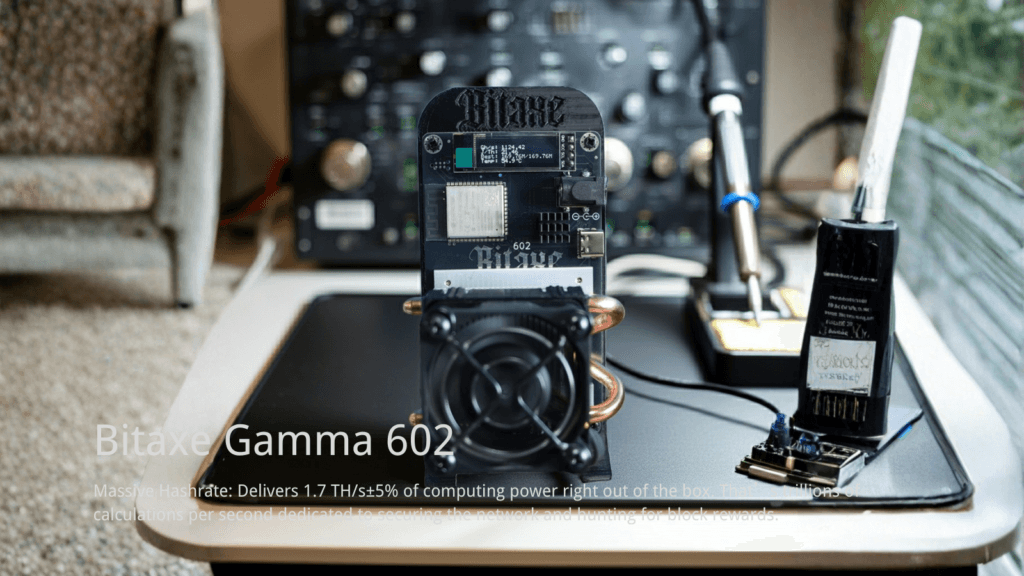
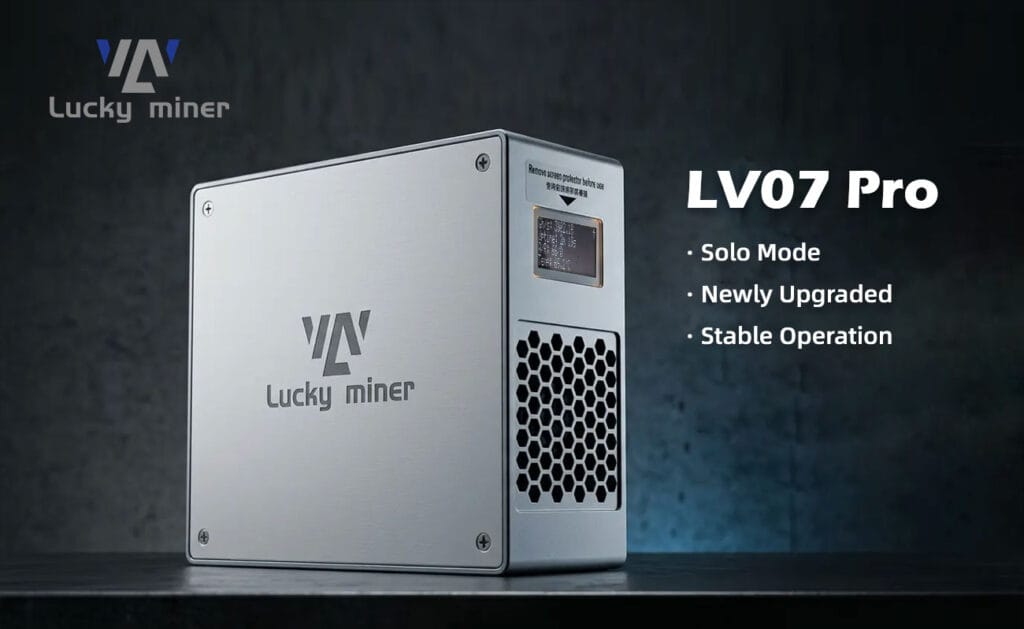
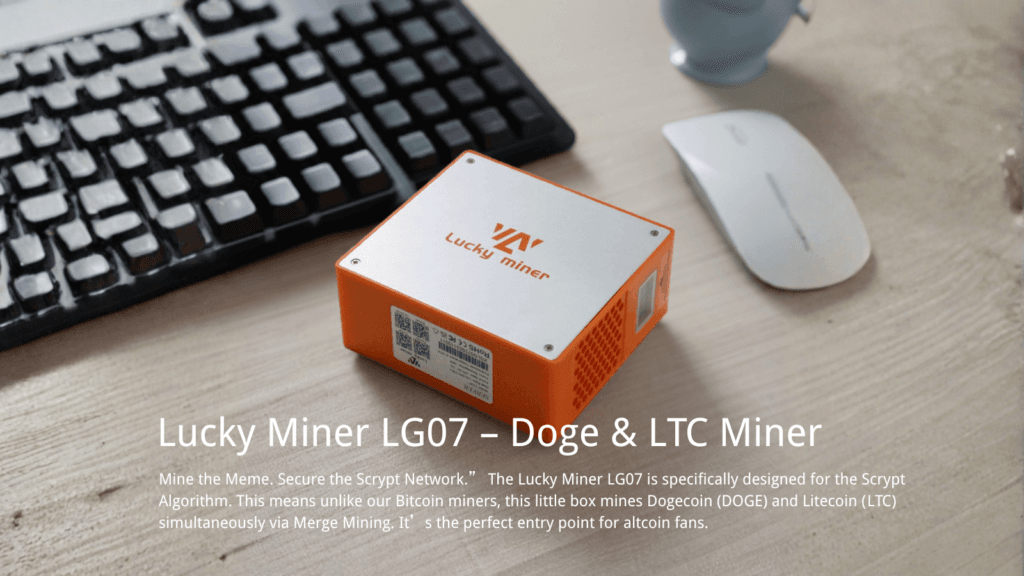
You have ordered your DigLucky NMMiner V2 or the powerful Bitaxe Gamma 601. You are ready to join the global hashrate war. But before you plug in the power supply, there is one critical question: If you hit a block, where does the 3.125 BTC go?
You cannot mine Bitcoin into a bank account. You need a Wallet.
For the uninitiated, this can be intimidating. “Private Keys,” “Seed Phrases,” “SegWit”—the jargon is dense. As DigLucky’s Chief Content Officer, I am going to cut through the noise. Here is the absolute beginner’s guide to setting up your first non-custodial Bitcoin wallet so you can configure your miner today.
Prerequisites: What You Need
- Hardware: A Smartphone (iOS/Android) OR a PC/Mac.
- Security: A Pen and Paper (Do not use digital notes).
- Time: 10 Minutes of focus.
- The Gear: Your mining hardware, such as the [DigLucky Shop – NMMiner V2] or [DigLucky Shop – Bitaxe Gamma 601].
Step 1: The Golden Rule (No Exchanges!)
Do not mine directly to a crypto exchange address (like Coinbase, Binance, or Kraken).
Why?
- Ownership: “Not your keys, not your coins.” If the exchange crashes, your mining rewards disappear.
- Payout Issues: Solo mining rewards are “Coinbase Transactions” (newly minted coins). Some exchanges do not recognize these specific transaction types immediately, or they change your deposit address frequently, which breaks your miner’s configuration.
You need a “Non-Custodial” wallet. This means YOU control the password (Private Key).
Step 2: Choose Your Path (Mobile vs. Desktop)
We recommend two specific wallets based on your technical comfort level:
- Path A: Mobile (Easiest) -> BlueWallet.
- Best for: Beginners, quick setup, managing small amounts.
- Path B: Desktop (Power User) -> Sparrow Wallet.
- Best for: Technical users, connecting to hardware wallets later, detailed transaction analysis.
Path A: Setting up BlueWallet (Mobile)
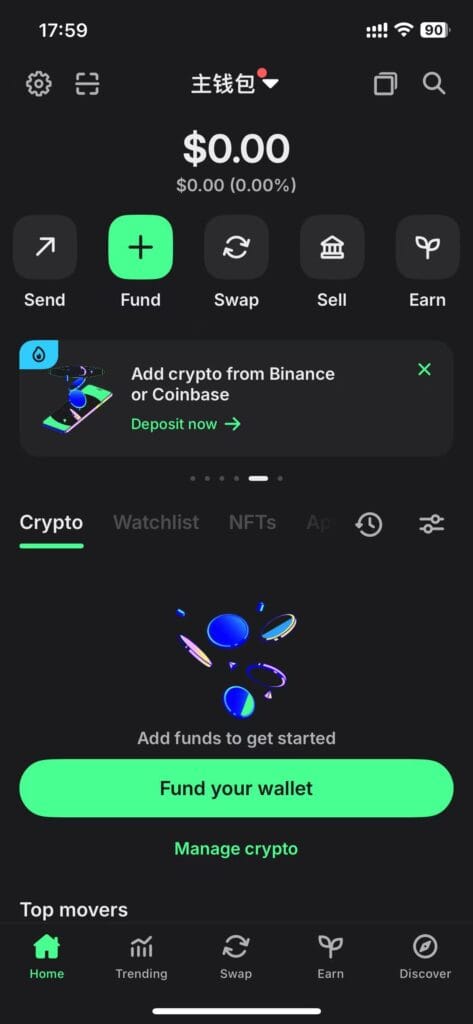
Screenshot of the BlueWallet mobile app home screen showing the “Add now” button.
- Download: Get BlueWallet from the official App Store or Google Play Store.
- Create: Open the app and tap “Add a Wallet”. Select “Bitcoin”.
- Backup (Critical): The app will show you 12 or 24 words. This is your Seed Phrase.
- Write these words down on paper in exact order.
- NEVER screenshot them.
- NEVER save them in a text file.
- Verify: Confirm the words as prompted.
- Get Address: Tap your new wallet card -> Tap “Receive”.
- Copy: Copy the address starting with bc1q… .
Path B: Setting up Sparrow Wallet (Desktop)
If you prefer managing your mining empire from a PC or Mac, Sparrow is the gold standard.
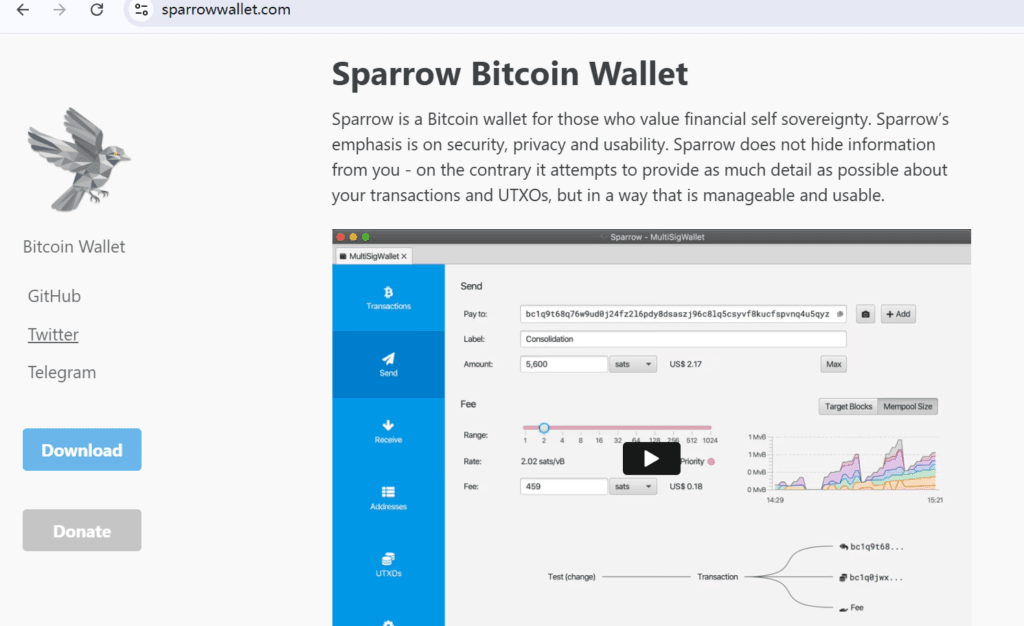
Sparrow Wallet welcome screen showing the server toggle switch
- Download: Go to sparrowwallet.com and download the installer for your OS.
- Server Setup: On the first launch, it will ask you to configure a server.
- Beginners: Select “Public Server” (e.g., Electrum). This is safe and fast.
- Experts: Connect to your own Bitcoin Core node if you have one.
- Click “Test Connection” and then “Create New Wallet”.
- Wallet Configuration:
- Name: Give it a name (e.g., “DigLucky Mining”).
- Policy Type: Leave as “Single Signature”.
- Script Type: Ensure “Native Segwit (P2WPKH)” is selected. This gives you addresses starting with bc1q .
- Generate Keys:
- Click “New or Imported Software Wallet”.
- Select “Mnemonic Words (BIP39)”.
- Select “12 Words” (sufficient for mining) or “24 Words”.
- Click “Generate New”.
- Backup (Critical):
- Write down the generated words on paper.
- Re-enter them to verify.
- Click “Create Keystore”.
- Finalize:
- Click “Apply”. It will ask you to set a Password. This password protects the wallet file on this specific computer only.
- Get Address:
- Click the “Receive” tab on the left sidebar.
- Copy the Address.
Step 3: Configure Your DigLucky Miner
Now that you have your address (from BlueWallet or Sparrow), let’s connect it to the hardware.
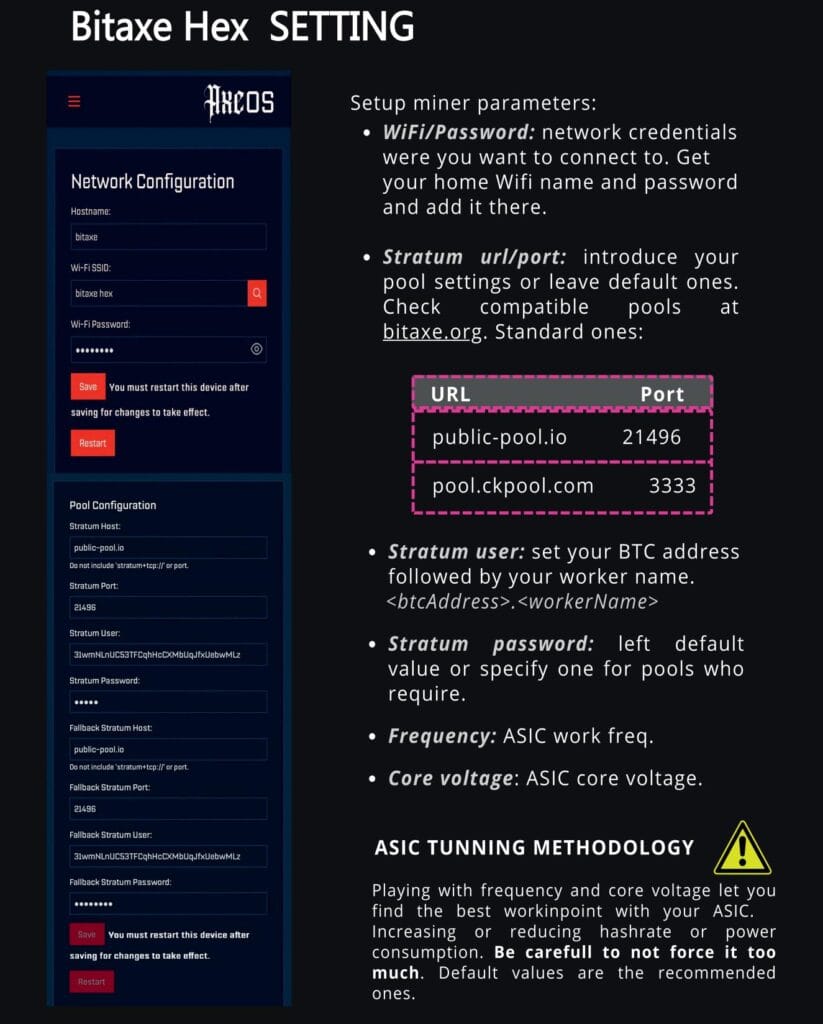
Bitaxe Gamma 601 (BM1370)
- Power on with the 5V/6A adapter.
- Find the miner’s IP address and open it in your browser (AxeOS).
- Go to Settings > Stratum User.
- Paste your address here.
- Pro Tip: The Gamma 601 runs at 1.2 TH/s. Double-check your address characters!
FAQ: Troubleshooting
Q1: Sparrow Wallet says “Disconnected” at the bottom right?
A: Go to File > Preferences > Server. Try selecting a different Public Server URL from the list or toggle “Use Proxy” off if you are not using Tor.
Q2: Can I use the same address for multiple miners?
A: Yes. If you have a fleet of NerdQaxe++ units6, you can point them all to the same address. The pool will aggregate the hashrate.
Q3: How do I know if I found a block?
A: Your mining pool (e.g., Public-Pool) will send you an email notification if you set it up, or you will simply see 3.125 BTC appear in your Sparrow/BlueWallet balance. This is the ultimate “Black Swan” event!
Stuck on the setup?
Join our technical support channel.
Ready to start?
Now that you have a wallet, grab the hardware to fill it.
Ready to Start Your Project?
Get a factory-direct quote for your B2B project, or shop our B2C store for the best prices.