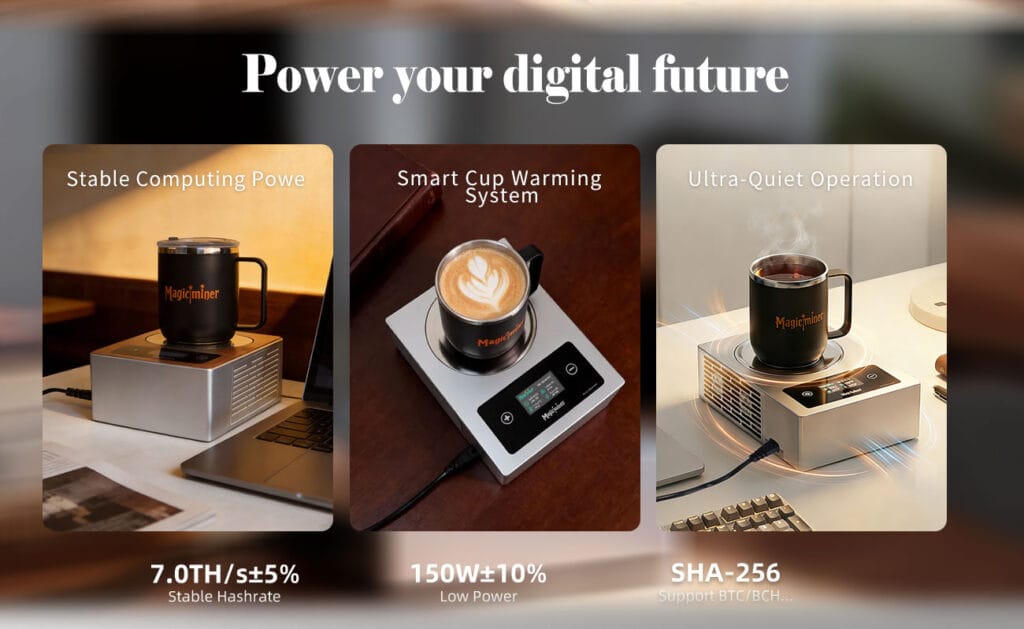
The Magicminer WM02 combines smart thermostatic beverage heating with SHA-256 ASIC operations, utilizing 150W of power to generate 7.0 TH/s while passively transferring silicon thermal exhaust to the heating plate. This SOP outlines the factory-grade hardware initialization, thermal management protocols, and network stratum configuration required for stable, long-term dual-function performance.
Product Function Introduction: 7.0 TH/s Hashing and Thermostatic Architecture
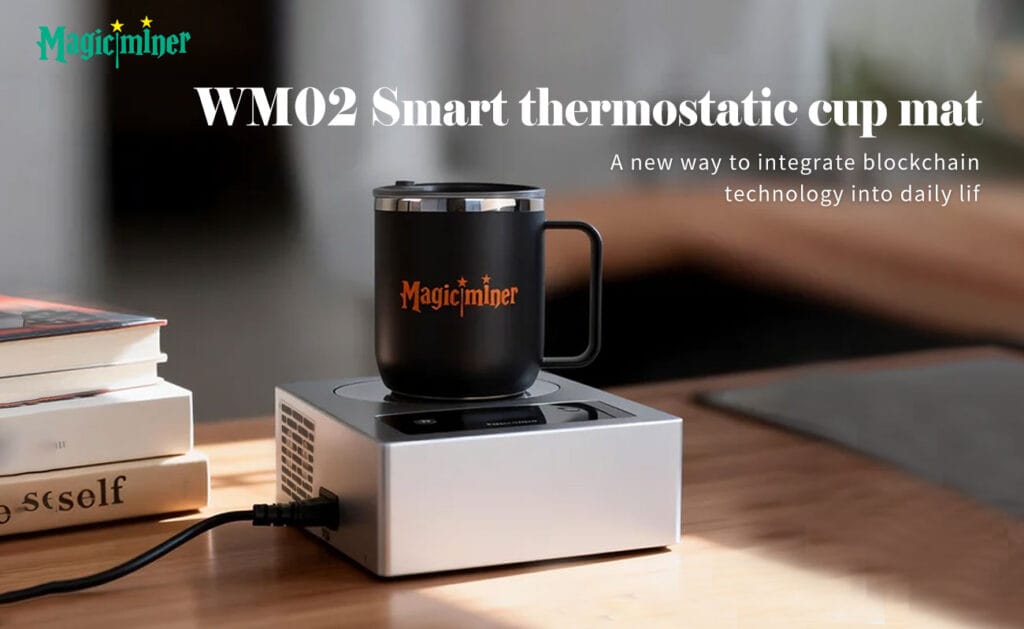
The WM02 is built on the core hashing architecture of the LV08 Pro series, repurposed into a desktop thermal management chassis. Instead of exhausting ASIC heat entirely into the ambient environment, the system utilizes a passive heat conduction structure to direct thermal energy from the ASIC operation to the top heating area.
The hardware chassis integrates an Air inlet, a dedicated Heating area for flat-bottomed cups, an Air outlet, Temperature setting buttons (+/-), a 1.9-inch LED display screen, and an AC wide-voltage Power input port (110V-240V~50/60Hz).
The Data Truth: DigLucky Factory Standards vs. DIY Clones
Many aftermarket cup warmers retrofitted with mining chips lack industrial thermal logic. DigLucky’s manufacturing lines ensure rigorous quality control for the WM02 architecture to prevent silicon degradation.
| Specification | DigLucky OEM Factory Standard (WM02) | Generic DIY Clone Risks |
| Power Delivery | Integrated 150W ± 10% AC wide-voltage supply. | Unstable external DC adapters prone to voltage sag. |
| Thermal Routing | Passive heat conduction structure targeting the heating plate. | Poor thermal padding; heat trapped around the PCB causing IC failure. |
| Firmware Stability | Factory-flashed OS with automatic thermostatic control. | Unofficial firmware updates resulting in thermal throttling and high reject rates. |
| Chassis Design | 20814868mm footprint with dedicated airflow channels. | Cramped enclosures that block air inlets, triggering hardware shutdowns. |
Product Power-on & Usage: Hardware Initialization and Thermal Control
Proper physical deployment is critical. The core design principles of the WM02 are safety, stability, and ease of use in long-term power-on scenarios like office desktops.
- Environmental Preparation: Position the device in a dry, indoor environment with an ambient temperature between 5°C and 35°C and humidity ≤60%. Ensure the Air inlet and Air outlet are completely unobstructed.
- Engage AC Power: Connect the included AC power cord to the device’s Power input port, then plug the other end into a grounded power socket. The 1.9-inch LED display screen will light up immediately, indicating immediate operation mode.
- Configure Thermostatic Output: Place a flat-bottomed ceramic, glass, or stainless steel cup filled with liquid onto the Heating area. Do not use cups with curved bottoms or non-heat-resistant materials.
- Adjust Heating Levels: Use the physical + and – buttons on the front panel to adjust the temperature setting. The microcontroller supports exactly 5 adjustment levels, dynamically regulating the ASIC’s thermal output to maintain the set temperature.
Product Mining Configuration: 2.4G Wi-Fi Network and Stratum Setup
The WM02 utilizes the same internal network protocols as the Luckyminer LV08 Pro. You must configure the local network and stratum pool parameters to initiate the SHA-256 mining process.
- Connect to the Hardware AP: Upon powering up, the device’s control IC broadcasts a localized setup network. Search for the Wi-Fi hotspot named Lucky_ or LuckyMinerAP using your mobile phone or computer and connect to it.
- Access the Configuration Dashboard: Wait 5-10 seconds for the automatic redirect to the mining configuration interface, or manually enter the gateway IP
192.168.4.1into your web browser. - Bind the Local Network: In the settings interface, enter your local router’s WiFi SSID and WiFi Password. The device only supports 2.4GHz Wi-Fi networks; special characters in the SSID or password are strictly prohibited.
- Input Stratum Parameters: Enter your target pool data. Input the Stratum URL (mining pool IP/address) and the Stratum Port. Under Stratum User, input your registered username or the main network wallet address (e.g., BTC address starting with 1, 3, or bc1).
- Save and Restart: Click the Save button to write the configuration to memory, followed by the Restart button. Wait 30-60 seconds; the device will connect to your local network and the LED screen will display real-time mining status.
Product Beginner FAQ: Pro-Level Diagnostic Troubleshooting
Q: The device is powered on, but it will not connect to my Wi-Fi network. A: Verify your network type. The internal Wi-Fi module requires a 2.4G network; 5G (802.11ac) is not supported. Ensure your Wi-Fi name and password consist only of English letters, numbers, or a combination of both, without special characters.
Q: The device is plugged in, the screen does not light up, but the internal fan is running. A: The main control IC failed to execute its boot sequence. While the device is powered on, press the physical reset button to restart the main control chip. You may need to do this 1 to 3 times to force a successful initialization.
Q: Wi-Fi is connected and power consumption is normal, but the Hashrate on the screen shows 0. A: This indicates a stratum rejection. Verify your mining pool address and ensure you are using an appropriate port number for the device’s hash rate. All mining pools have a minimum access difficulty; ensure your port selection corresponds to a difficulty under 1000 to match the device’s computing power.
Q: The miner is running at very low power consumption (<20W). A: The ASIC hashing module has not engaged. The control IC has not started properly. Press the reset button 1 to 3 times to reboot the control IC and re-initiate the hashing sequence.
Q: The miner keeps restarting repeatedly and the Hashrate is highly unstable. A: This is a symptom of either high-latency Wi-Fi congestion or thermal protection engagement. If the ambient temperature exceeds 30°C or ventilation is blocked, the hardware-level temperature protection will force a reboot. Ensure the device is in a well-ventilated area. Alternatively, switch to a more stable Wi-Fi hotspot.
Secure Your Wholesale Supply Chain with DigLucky
DigLucky is the premier factory-direct partner for desktop ASIC hardware and dual-function thermal devices. We offer scalable B2B solutions for global distributors looking to source the WM02 and the complete LV08 Pro series. Our production lines support deep OEM customization, including tailored firmware, custom chassis colors, and localized packaging for your specific market. Benefit from our strict quality control, volume-based Tier 1 pricing, and secure T/T wire transfer processing. Contact our Shenzhen operations team today to request Full Carton specifications and secure your inventory.
Ready to Start Your Project?
Get a factory-direct quote for your B2B project, or shop our B2C store for the best prices.