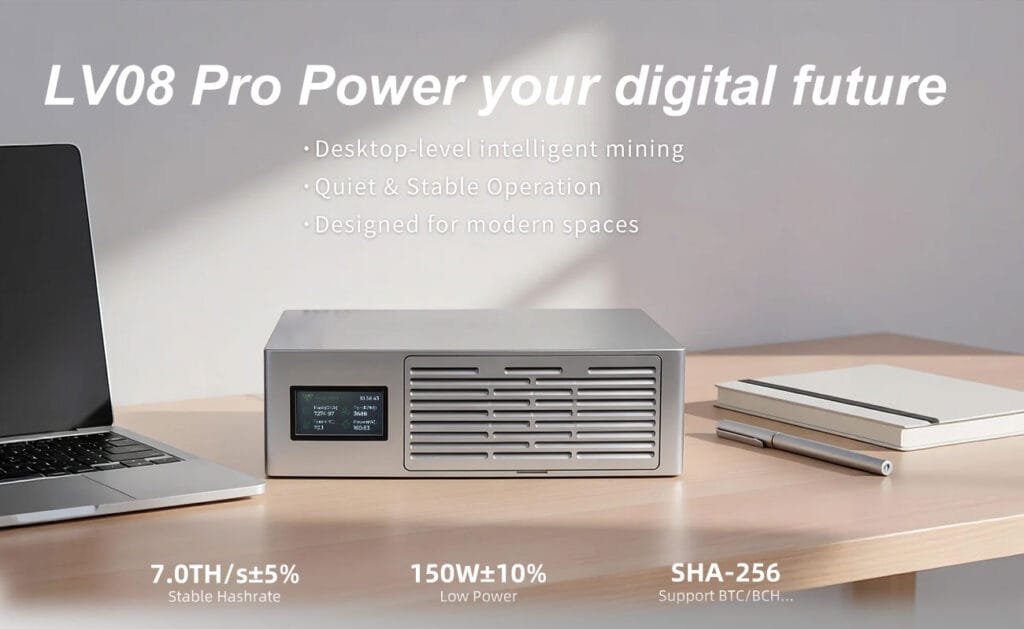
Congratulations on acquiring the Luckyminer LV08 Pro! Engineered for the ultimate home mining experience, this compact powerhouse delivers an incredible 7.0 TH/s hashrate at a highly efficient 150W power draw. Best of all, with an ultra-silent 38 dBA cooling system, it fits perfectly on your desk or in your living room without causing disruptions.
Whether you are targeting stable payouts in a PPLNS pool or chasing the ultimate block reward via SOLO mining, getting your LV08 Pro online is incredibly simple.
Follow this step-by-step tutorial to configure your miner and start hashing in under 5 minutes.

📋 Prerequisites: What You Need Before Starting
Before plugging in your device, ensure you have the following ready:
- A 2.4GHz Wi-Fi Network: The LV08 Pro does not support 5GHz networks. Ensure your router has a dedicated 2.4GHz band.
- A Cryptocurrency Wallet: A mainnet wallet address for the coin you wish to mine (e.g., a Bitcoin address starting with
1,3, orbc1). - Mining Pool Details: You will need the Stratum URL and Port of your chosen mining pool (e.g.,
public-pool.iofor Solo BTC mining).
Step 1: Hardware Setup and Powering On
The LV08 Pro features a plug-and-play power design, meaning there are no heavy external server PSUs to deal with.
- Connect the Cables: Plug the included AC power cable into the adapter’s input, and then connect the adapter’s DC output into the back of the miner.
- Plug into the Wall: Connect the AC cable to a standard 100-240V AC wall outlet.
- Boot Sequence: Upon powering on, the adapter indicator light will turn green, and the miner’s cooling fan will spin up.
- Screen Initialization: Look at the front LCD screen. After a few seconds, it will display a message prompting you to connect:
"connect to ssid: Lucky_****".
Step 2: Accessing the Captive Portal
The LV08 Pro uses a wireless web interface for configuration. You do not need an Ethernet cable or specific software.
- Grab your smartphone or computer and open your Wi-Fi Settings.
- Scan for networks and connect to the hotspot broadcasted by the miner, named
Lucky_****(the asterisks will be a unique 4-digit code). - Wait for 5 to 10 seconds. Your device should automatically redirect to the mining configuration interface.
- Troubleshooting Tip: If the page does not pop up automatically, open your web browser and manually type
http://192.168.4.1into the address bar.
- Troubleshooting Tip: If the page does not pop up automatically, open your web browser and manually type
Step 3: Configuring Your Mining Settings
You are now in the LV08 Pro’s configuration dashboard. Precision here is key. Fill out the fields as follows:
- WiFi SSID: Enter the exact name of your 2.4GHz Wi-Fi network.
- WiFi Password: Enter your Wi-Fi password.
- ⚠️ CRITICAL WARNING: Your Wi-Fi SSID and Password MUST NOT contain special characters (like
,,',",\, or spaces). Use only English letters and numbers. Special characters will cause the connection to fail!
- ⚠️ CRITICAL WARNING: Your Wi-Fi SSID and Password MUST NOT contain special characters (like
- Stratum URL: Enter your mining pool’s address (e.g.,
public-pool.io). - Stratum Port: Enter the pool’s port number (e.g.,
21496). - Stratum User: Enter your mainnet wallet address (or your registered pool username).
- Frequency: The default operating frequency is 575 MHz.
- Core Voltage: The default ASIC core voltage is 1200 – 1300 mV.
Saving and Restarting
Once all fields are correctly filled, click the Save button. After saving, click the Restart button. The miner will reboot and attempt to connect to your local Wi-Fi and the mining pool.
Step 4: Verifying Your Hashrate
- Wait 30 to 60 seconds after the restart.
- The miner’s LCD screen will update to display real-time telemetry, including your Hashrate (Gh), Power Efficiency (W/Th), ASIC Temperature, and Fan RPM.
- Check the Pool: Log into your chosen mining pool’s website and search for your wallet address to verify that shares are being successfully submitted.
⚙️ Advanced Tuning Guidelines
For enthusiasts looking to optimize efficiency or thermals, the LV08 Pro allows manual tuning of the BM1370 ASIC chips.
According to the official DigLucky manual:
- Max Recommended Frequency: 575 MHz
- Max Recommended Voltage: 1300 mV
- Power Limit Rule: If your measured power consumption exceeds 130W, you must gradually reduce the Frequency and Core Voltage to maintain stability and prevent overheating. Ensure the device is placed in a well-ventilated area with an ambient temperature below 30°C (86°F).

Frequently Asked Questions (FAQ) & Troubleshooting
Q: My miner powers on, but I cannot connect to the Lucky_**** Wi-Fi hotspot. A: The main control IC may not have initialized properly. While the miner is powered on, locate the physical reset button on the board and press it 1 to 3 times to force a reset of the main control chip.
Q: The screen shows “Mining pool resolution failed” or keeps restarting. A: This usually means the miner connected to your Wi-Fi but cannot reach the internet. Ensure your Wi-Fi network has active internet access. If the network is stable, the mining pool might be blocking your IP or the Stratum URL is typed incorrectly. Try switching to an alternative pool.
Q: The miner is running, but the hashrate is 0 and power consumption is very low (<20W). A: Check the LCD screen’s output. If the device temperature is too high, the miner will enter thermal protection mode. Alternatively, your target mining pool’s “start difficulty” might be too high. Ensure the pool’s minimum difficulty is compatible with a 7 TH/s device.
Q: Can I upgrade the firmware using open-source files online? A: We strongly advise against upgrading to unofficial firmware. Flashing unauthorized firmware can brick the device and will void your after-sales service warranty. Always use official DigLucky releases.
Quick Start: Get hashing in under 5 minutes. Read the official Luckyminer LV08 Pro User Manual.
Ready to Start Your Project?
Get a factory-direct quote for your B2B project, or shop our B2C store for the best prices.